

In This Article
Every day, thousands of small businesses lose money because someone clicked a fake email that looked completely legitimate. It only takes one mistake for attackers to steal passwords, customer information, or company funds.
The biggest problem is that modern phishing emails don’t look suspicious anymore. They copy trusted brands, use professional language, and create a false sense of urgency that pressures people into acting before they think.
The good news is that phishing attacks follow predictable patterns. Once you know what to look for, you’ll spot the traps before they can do any damage.
Quick Answer: Phishing Email Examples
Phishing email examples are fake emails designed to trick people into clicking malicious links, downloading infected files, or revealing sensitive information.
- Fake password reset requests from popular services
- Fraudulent bank security alerts
- Invoice and payment scams
- Delivery notification emails with fake tracking links
- CEO or manager impersonation emails
- Tax refund or government notice scams
- Prize, lottery, or gift card offers that request personal information
What Is a Phishing Email?
A phishing email is a fraudulent message that pretends to come from a trusted company or person. The goal is simple: convince you to reveal passwords, banking details, or other sensitive information.
Attackers rely on fear, urgency, curiosity, and trust instead of technical hacking skills. That’s why anyone—not just IT professionals—can become a target.
Why Small Businesses Are Prime Targets
Many small businesses believe hackers only target large corporations. That’s exactly what criminals hope people think.
Small businesses often have:
- Limited cybersecurity training
- Shared passwords
- Fewer security controls
- Employees who wear multiple hats and work quickly
One successful phishing attack can lock your files with ransomware, steal customer records, or empty company bank accounts.
7 Real-World Phishing Email Examples
1. Fake Microsoft Password Reset
Subject: Your password expires today
The email claims your account will be locked unless you reset your password immediately. The “Reset Password” button leads to a fake login page that steals your credentials.
Red Flag: Urgent deadline and suspicious login page.
2. Fake Bank Security Alert
Subject: Unusual login detected
The email warns about suspicious banking activity and asks you to verify your identity.
Red Flag: Generic greeting like “Dear Customer” and links that don’t match your bank’s official website.
3. Invoice Payment Scam
Subject: Outstanding Invoice #48271
A fake invoice attachment claims payment is overdue.
Red Flag: Unexpected invoice from an unknown sender or attachment.
4. Package Delivery Notification
Subject: Delivery Failed
The email asks you to confirm your shipping address by clicking a tracking link.
Red Flag: You never ordered anything.
5. CEO Impersonation
Subject: Need gift cards urgently
An attacker pretends to be your manager and asks you to buy gift cards immediately.
Red Flag: Requests for secrecy and unusual payment methods.
6. Tax Refund Scam
Subject: Claim your tax refund
The email promises a refund if you verify your banking information.
Red Flag: Government agencies rarely request sensitive information by email.
7. Prize Winner Scam
Subject: Congratulations! You’ve won.
The message says you’ve won money or a valuable prize.
Red Flag: You never entered any contest.
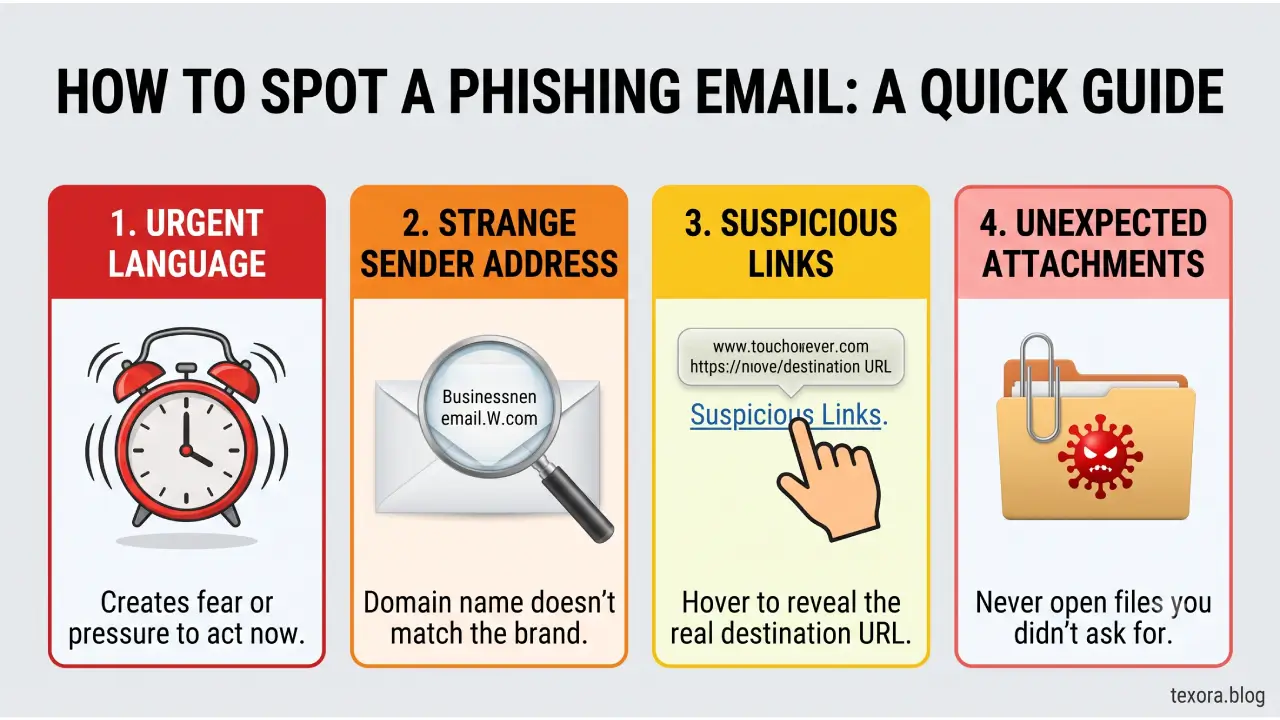
The 7 Biggest Signs of a Phishing Email
| Warning Sign | Why It’s Dangerous |
|---|---|
| Urgent language | Pushes you to act without thinking |
| Generic greeting | Indicates mass phishing campaign |
| Strange sender address | Fake domains often mimic trusted companies |
| Suspicious links | Can steal passwords |
| Unexpected attachments | May install malware |
| Grammar or spelling mistakes | Common in phishing campaigns |
| Requests for passwords or payments | Legitimate companies rarely ask by email |

How to Check an Email Before Clicking Anything
Follow this simple process every time: 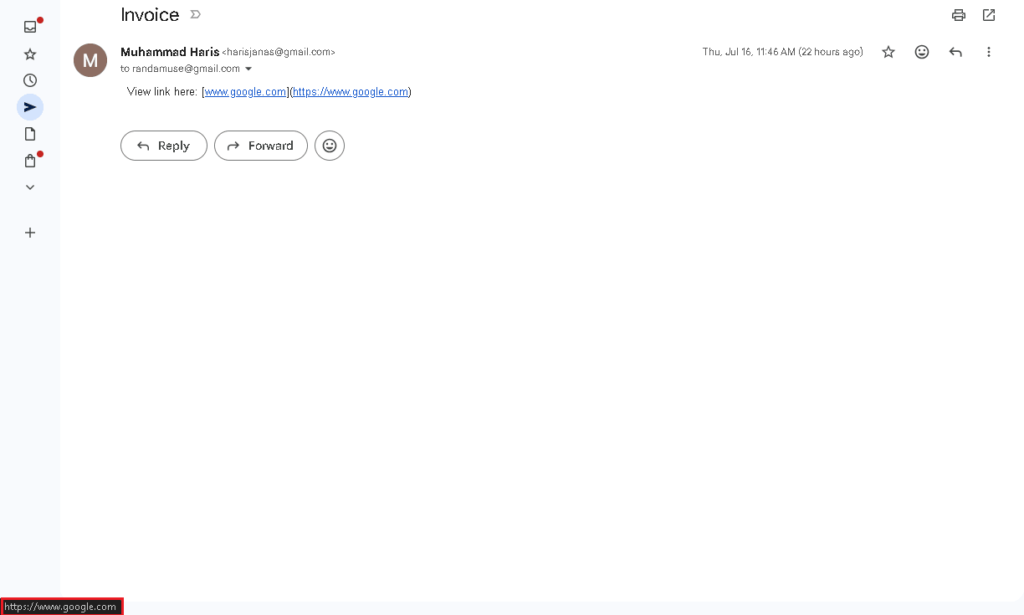
- Check the sender’s email address carefully.
- Hover over links before clicking.
- Look for spelling mistakes and unusual wording.
- Ask yourself if you expected the email.
- Never open unexpected attachments.
- Visit the company’s website directly instead of using email links.
- If you’re unsure, contact the company using their official phone number.
These seven steps take less than a minute and can prevent a costly security incident.
Common Tricks Used by Phishing Attackers
Phishing emails succeed because they manipulate emotions.
They often create:
- Fear of losing access
- Pressure to act immediately
- Excitement about winning something
- Curiosity about invoices or documents
- Trust by copying well-known brands
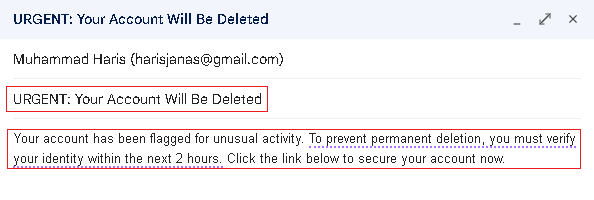
Once you recognize these emotional triggers, phishing emails become much easier to identify.
What To Do If You Clicked a Phishing Link
Don’t panic. Act quickly.
- Disconnect from the internet if malware may have downloaded.
- Change your password immediately from the official website.
- Enable multi-factor authentication.
- Scan your device using trusted antivirus software.
- Inform your IT department or business owner.
- Monitor bank accounts and online services for unusual activity.
Fast action can dramatically reduce the damage.
Best Practices to Protect Your Business
Good cybersecurity habits stop most phishing attacks before they succeed.
- Train employees regularly.
- Use multi-factor authentication.
- Keep software updated.
- Use strong, unique passwords.
- Verify payment requests through another communication channel.
- Back up important business data.
- Report suspicious emails instead of ignoring them.
Cybersecurity isn’t about being perfect. It’s about making safe decisions consistently. Adopting tools like password managers improve online security is a great way to make these safe decisions daily. 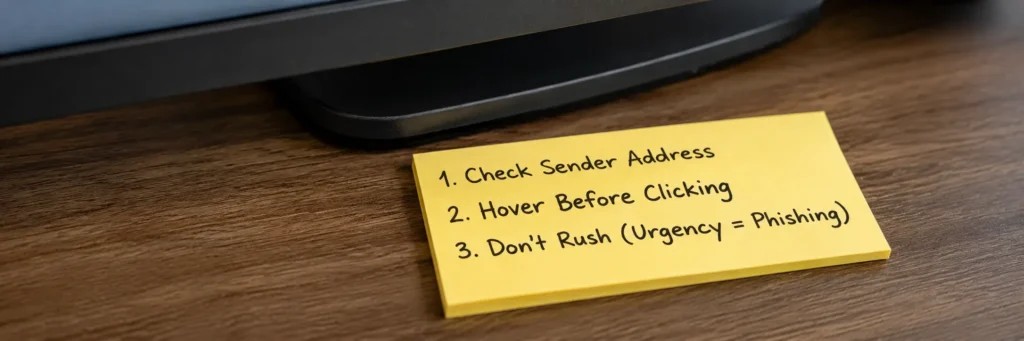
Final Thoughts
Phishing emails are becoming more convincing every year, but their tactics remain surprisingly predictable. If you slow down, verify the sender, and question unexpected requests, you’ll avoid the vast majority of attacks.
A single minute spent checking an email can save your business thousands of dollars, protect customer trust, and prevent days of downtime.
What are 7 signs of phishing?
The seven most common signs are urgent language, generic greetings, suspicious sender addresses, unexpected attachments, fake links, poor grammar, and requests for passwords or payments. If an email shows several of these warning signs, treat it as suspicious.
What is a typical phishing email?
A typical phishing email pretends to come from a trusted organization such as a bank, shipping company, software provider, or government agency. It usually creates urgency and asks you to click a link, open an attachment, or verify personal information.
What type of email is phishing?
A phishing email is any fraudulent email designed to steal sensitive information or infect your device. Common types include password reset scams, fake invoices, delivery notifications, CEO impersonation, banking alerts, tax refund scams, and prize-winning messages.